

VALYNOXSTRATEGY RESEARCH TECHNOLOGY
AlphaPrimeAlphaPrime
PHONE CONTROL

Your research desk.
In your pocket.

Connect Claude on your phone to AlphaPrime on your computer. Check how a run is going, pause it, or line up the next one, wherever you are.

What you can do from your phone

Check in

“How far along is the run?” “Show me the top 5 strategies.” Claude reads it straight from AlphaPrime.

Pause and resume

Takes effect as soon as you ask.

Start the next run

Start or stop a run, apply settings, run a validation or a walk-forward, save to the library or export. Each one waits for your confirmation on your phone.

Ask about settings

What a field means, what to set, what to check before you start.
What you need

  • AlphaPrime open on your computer.
  • A Claude account (claude.ai or the Claude app).
  • Your AlphaPrime member account, the one you bought with.

Set it up once

  1. 1

    Turn on phone control

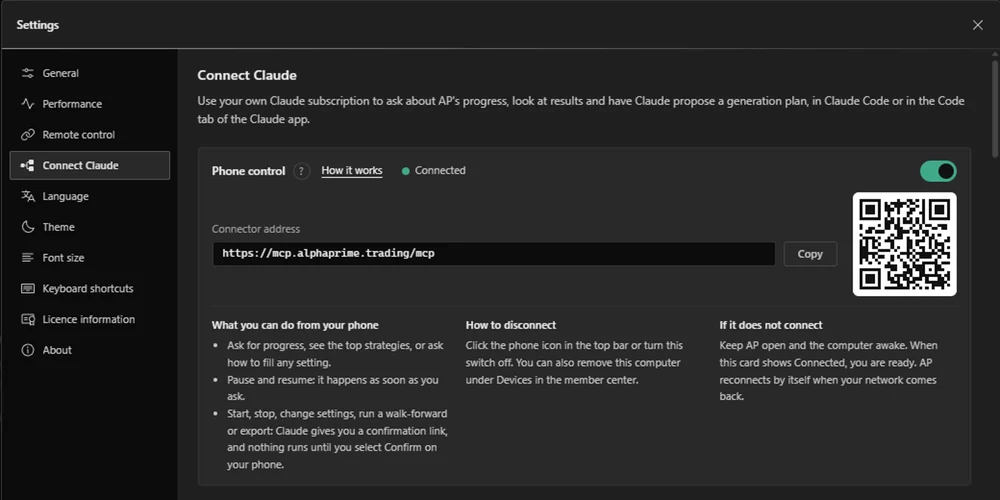
    In AlphaPrime, open Settings (the gear at the bottom of the left sidebar) ▸ Connect Claude. At the top, turn on Phone control. When it shows Connected, copy the connector address next to it.

  2. 2

    Add AlphaPrime to Claude

    On claude.ai, open Settings ▸ Connectors ▸ Add custom connector. Name it AlphaPrime, paste the address and select Add. Connectors you add there also appear in the Claude app on your phone.

  3. 3

    Sign in and allow

    Select Connect. The AlphaPrime page opens: sign in with your member account, check the computer name and select Allow.

  4. 4

    Ask from your phone

    Open the Claude app, start a chat, turn on AlphaPrime in the tools menu, and ask.

Settings ▸ Connect Claude ▸ Phone control, switched on.
Sign in and select Allow.
A confirmation on your phone.

Every change waits for your OK

When you ask for something that changes your work, Claude gives you a link. Open it, check the summary and select Confirm. The link stays valid for 5 minutes. The same card also appears in AlphaPrime on your computer, and whichever you answer first counts. Pause now, at the top of the page, pauses the run at once.

Disconnect any time

  • On your computer: click the phone icon in the top bar, or turn off Phone control.
  • In the member center: open Devices and select Remove next to the computer.
  • In Claude: remove the AlphaPrime connector under Settings ▸ Connectors.

Common questions

Claude says AlphaPrime is not connected.

Keep AlphaPrime open and the computer awake, and check that Phone control shows Connected. AlphaPrime reconnects by itself when your network comes back.

The sign-in page asks me to turn on phone control first.

Turn on Phone control in AlphaPrime on your computer, then select Connect again in Claude.

The sign-in page asks for a different account.

Sign in with the member account you bought AlphaPrime with.

The confirmation link says it has expired.

Links last 5 minutes. Ask Claude to send it again.

Is it safe?

Two keys are needed: your member sign-in, and a key that belongs to this computer and never leaves it. Nothing on your computer is opened to the internet; AlphaPrime makes the connection itself, encrypted. Every change waits for your confirmation.

I have more than one computer.

Turn on Phone control on each one. When you select Allow, choose the computer this connection operates.

Where does an exported strategy go?

After you confirm, the save dialog opens on your computer.