
VALYNOXSTRATEGY RESEARCH TECHNOLOGY
AlphaPrimeAlphaPrime
INSTALL HELP

Seeing a blue warning when you install?
That is expected.

AlphaPrime is a new publisher, so Windows does not recognize the installer yet. Follow these steps to continue — it takes about a minute.

1

Step 1 · Your browser asks you to keep the file

Edge and Chrome may hold back files that few people have downloaded. Choose to keep it.

Microsoft Edge
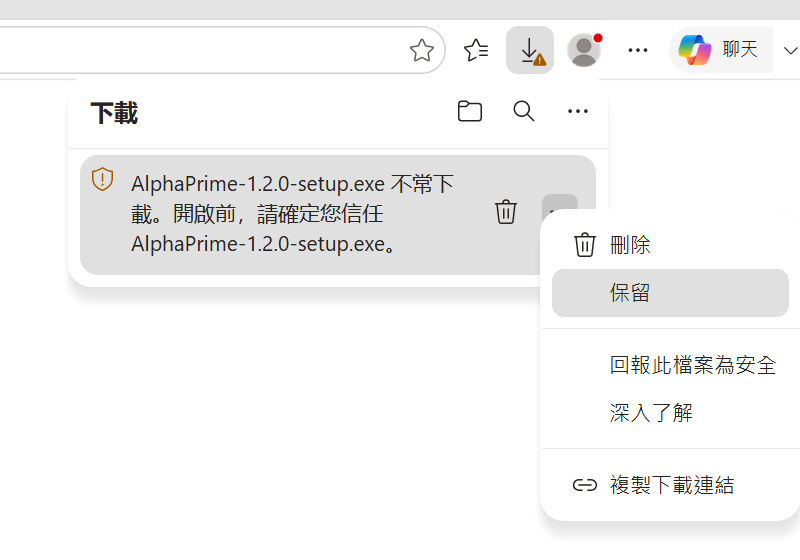
“Not commonly downloaded” notice
1Open the Downloads panel. The installer is marked as not commonly downloaded.
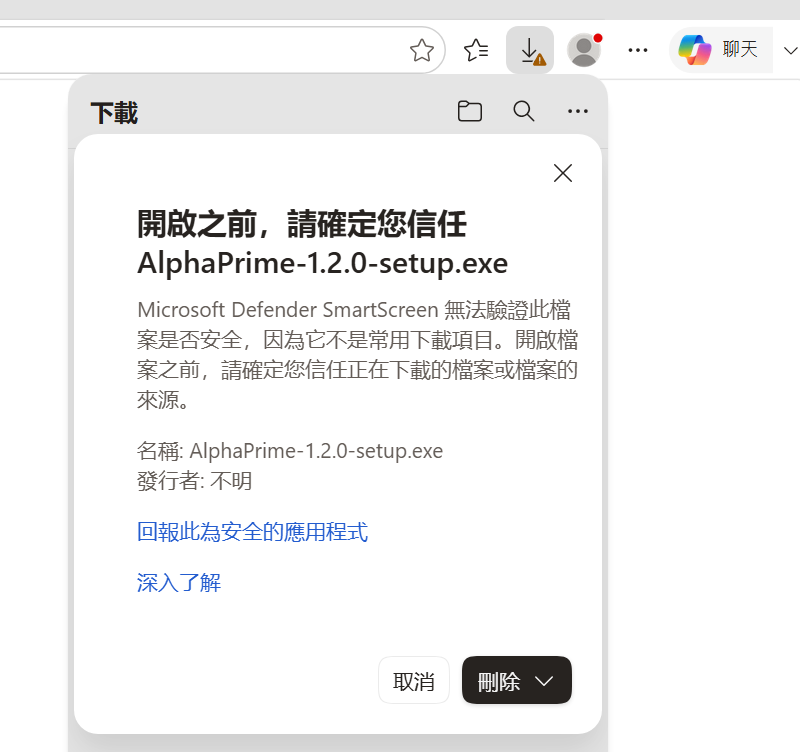
“⋯” menu → Keep
2Hover over it, click the “⋯” button, then choose “Keep”.
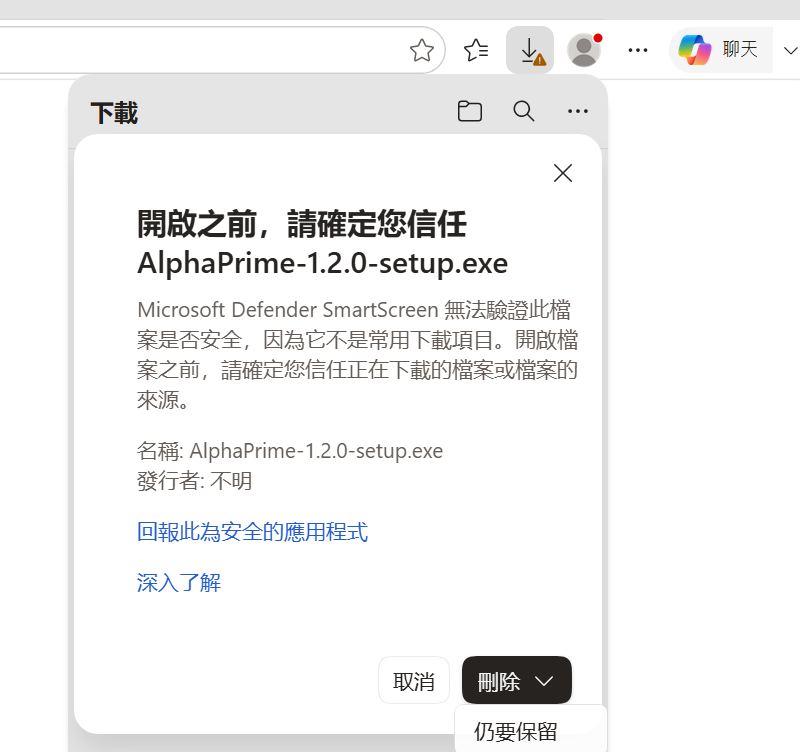
Confirmation window
3A confirmation window opens. Click the small arrow next to the main button.
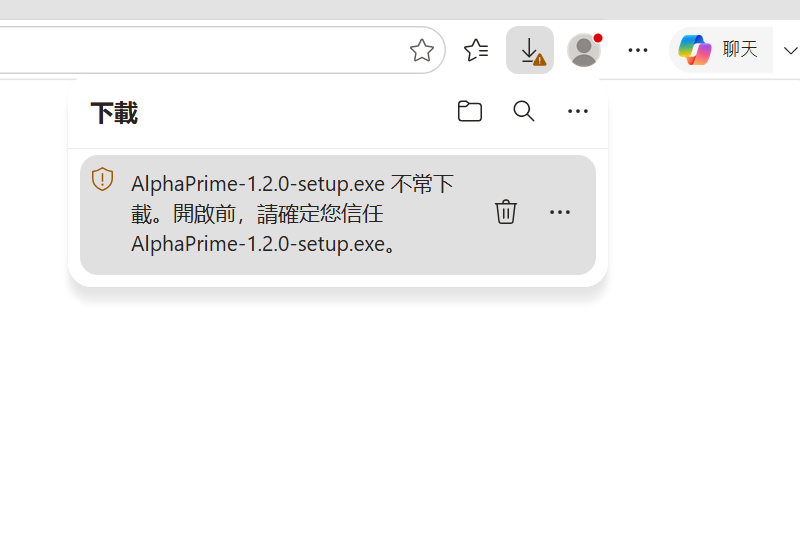
Keep anyway
4Choose “Keep anyway”.

Screenshots show Edge in Traditional Chinese; the buttons are in the same places in your language.

Google Chrome

Chrome usually downloads the installer without asking. If the download panel shows a warning, click “Keep” (or “Keep anyway”).

2

Step 2 · Windows says “Windows protected your PC”

Double-click the downloaded installer. If this blue window appears, it is Microsoft Defender SmartScreen.

Illustration. Your Windows may look slightly different.

  1. Click “More info” (the small link in the text).
  2. Then click “Run anyway”. If you would rather not continue, click “Don’t run”.
3

Step 3 · Install as usual

After “Run anyway”, the AlphaPrime setup wizard starts. If Windows asks for permission to make changes, choose Yes; if Windows Security shows a scan notice, let it finish and continue.